The first version of an AI-generated image often gives you something worth keeping, along with a few details you’d rather change. Maybe the character looks great, but the jacket just isn’t right. The composition works, but you’d prefer a wider view. Or you have the character and setting you want, and only one small part needs fixing.
You don’t have to throw away the whole image to deal with those problems. On the PixAI mobile app, you can approach the edit in several ways depending on what needs changing.
In this guide, I’ll use the PixAI mobile app and take you through creating, editing, and refining AI anime art on your phone. I’ll also help you decide which editing method makes sense for the change you’re trying to make.
What does editing AI anime art on mobile actually involve?
Once you have an image you want to keep working on, the right editing method depends on how much you want to change. A prompt adjustment can take the image in a new direction, while a masked edit is better suited to one specific part. If the composition feels cramped, you can extend it outward. And when you want to guide a change such as a new pose or scene, reference images can give the generation more visual direction.
When using the PixAI mobile app, you can approach those changes through four main methods:
- Edit the prompt: Create a variation by changing the instructions while keeping the existing idea as your starting point.
- Inpaint: Paint over the area you want to replace, then describe what should appear there.
- Outpaint: Extend the image beyond its original boundaries and describe what you want added.
- Use references: Add one to three images to guide a change while keeping more of the original image intact.
The useful part is knowing which method matches the problem you’re trying to solve. A small clothing detail, for example, calls for a different approach than turning a portrait into a wider scene.
1. Edit the prompt for broader changes
Sometimes the image is close to what you want, but the overall direction needs to change. In that case, editing the prompt can be enough to produce another version without rebuilding the idea from scratch.
This means that you’ll basically be regenerating the image with a new prompt to ask for a different outfit, expression, pose, setting, or lighting.
For example, let’s assume you have this prompt:
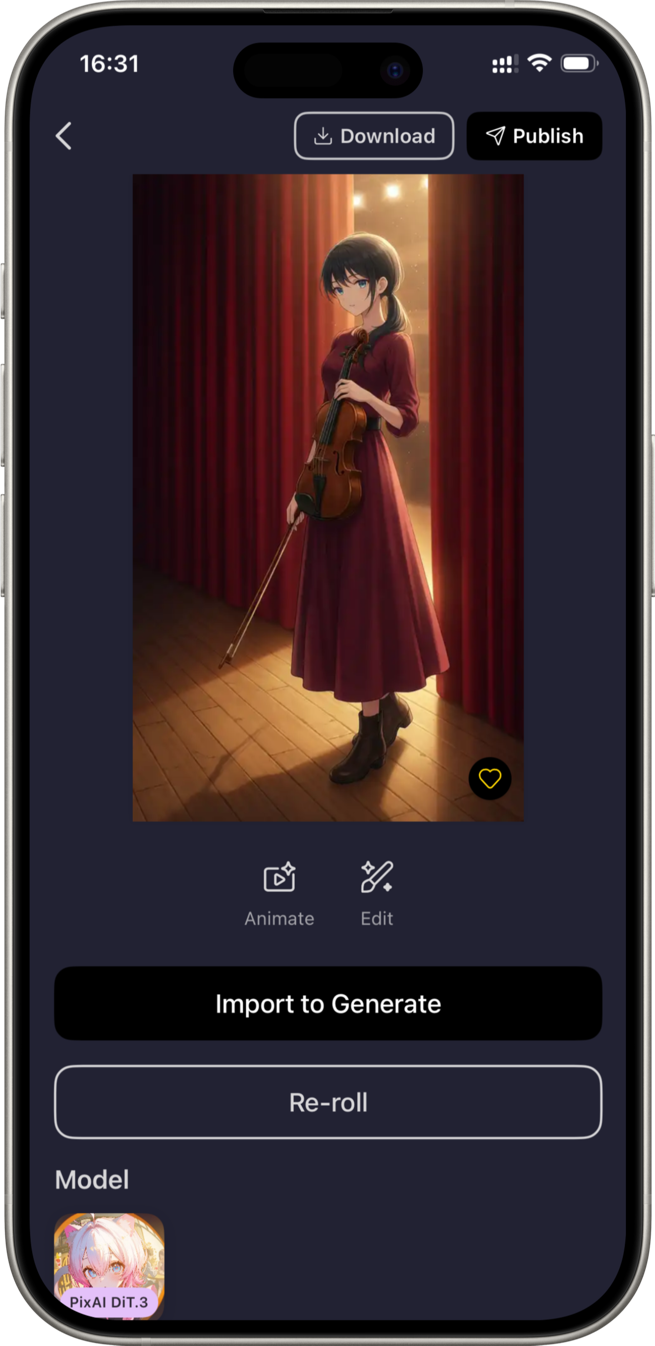
Anime illustration of a young female violinist with long black hair tied in a low ponytail and blue eyes, wearing a burgundy concert dress with a black waist belt and ankle boots. She stands backstage in an old theater, holding a violin and bow, with velvet curtains, wooden stage flooring, and warm stage lights visible behind her. Full-body composition, three-quarter view, traditional anime style, detailed background, soft cinematic lighting.
Here’s what PixAI gives us:
If you like the idea but would want the girl in a different outfit, you could edit “wearing a burgundy concert dress with a black waist belt and ankle boots” to something like “wearing a cream-colored blouse with a dark green pleated skirt and brown ankle boots.” Then regenerate.
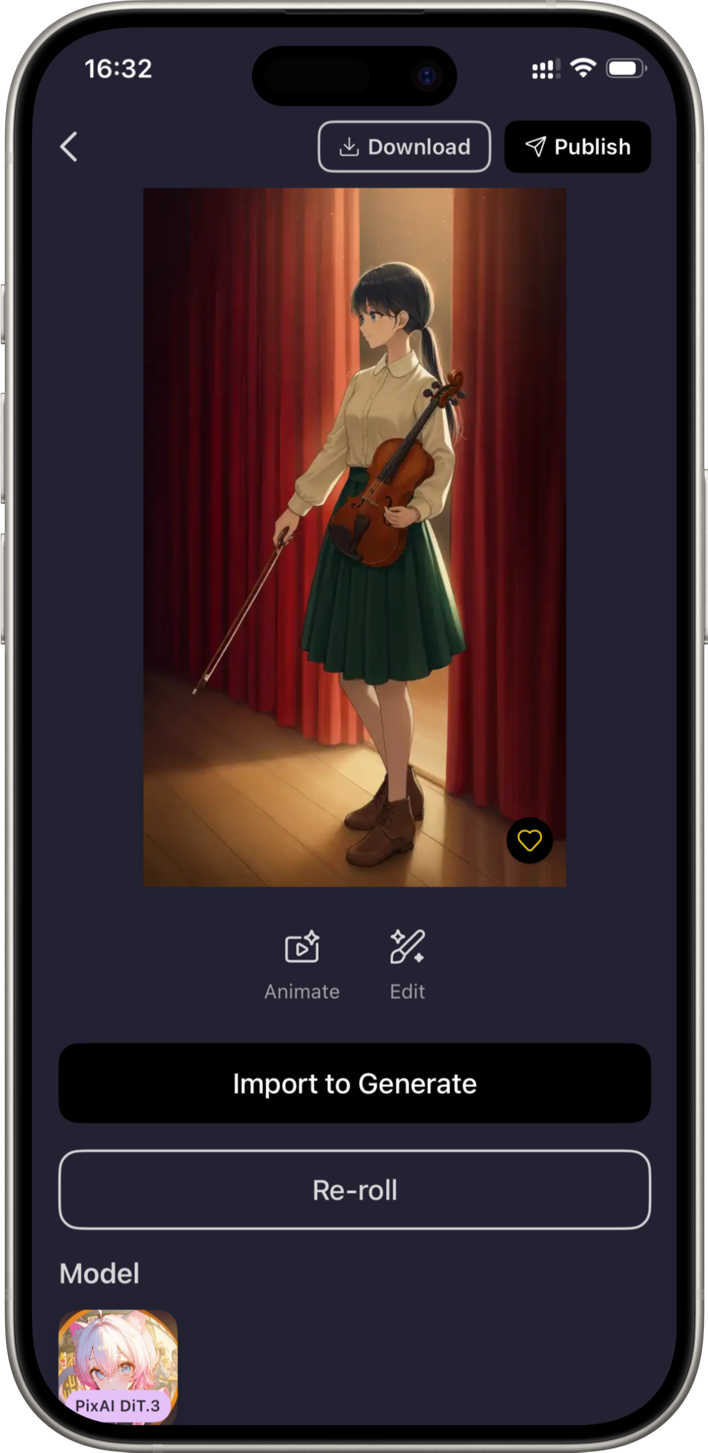
It won’t be exactly the same as the original one, but it will be a similar or related illustration if you don’t change the model. That’s useful when you want to explore variations and see where the image can go next. But if you want to retain your character or background, use a different editing method.
2. Use inpainting for targeted edits
When the rest of the image already works, you can focus the edit on one specific area. PixAI’s Inpaint tool lets you do that by adding a mask over the part you want to change.
To use it, just click on any image you’ve created. You’ll see an Edit button that will take you to Inpaint, where you can draw over the area you want to replace.
You can mask something as small as an accessory or as large as a character’s outfit, depending on the edit you’re trying to make. Once you’ve selected the area, write a prompt describing what you want there and generate the result.
For example, if you like our character’s pose and background but want to change her hair, you can just mask it and write “long wavy silver hair flowing over her shoulders.”
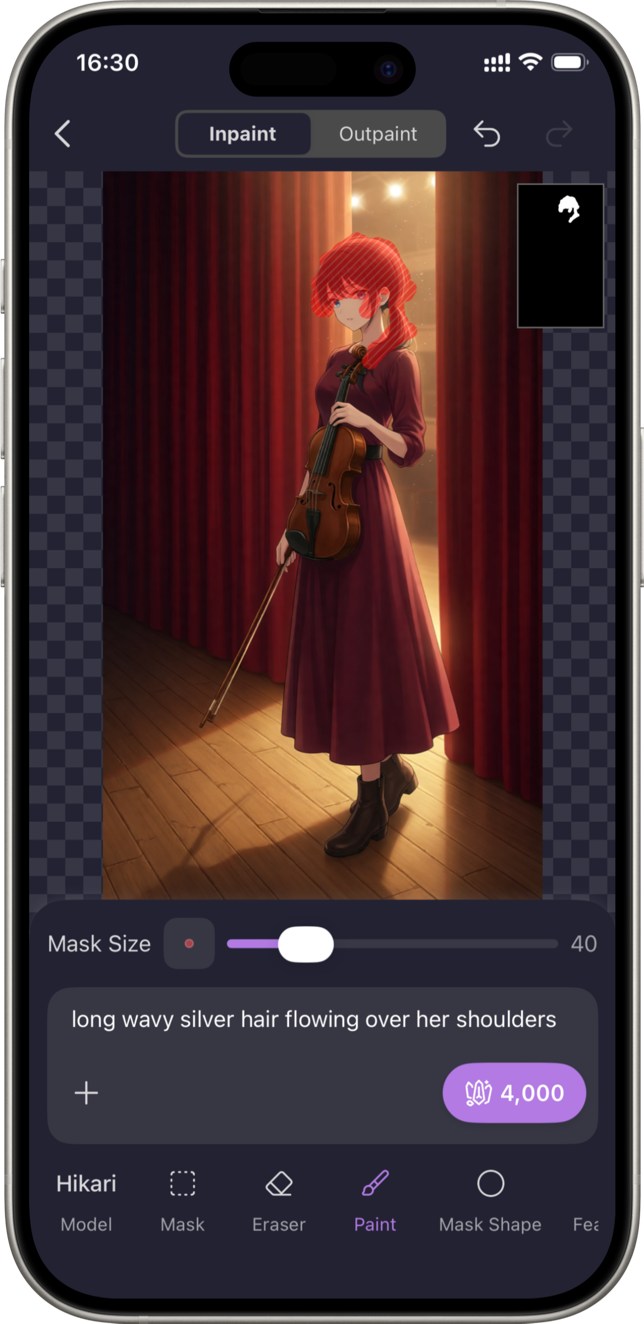
The rest of the image stays the same while PixAI works on the selected area.
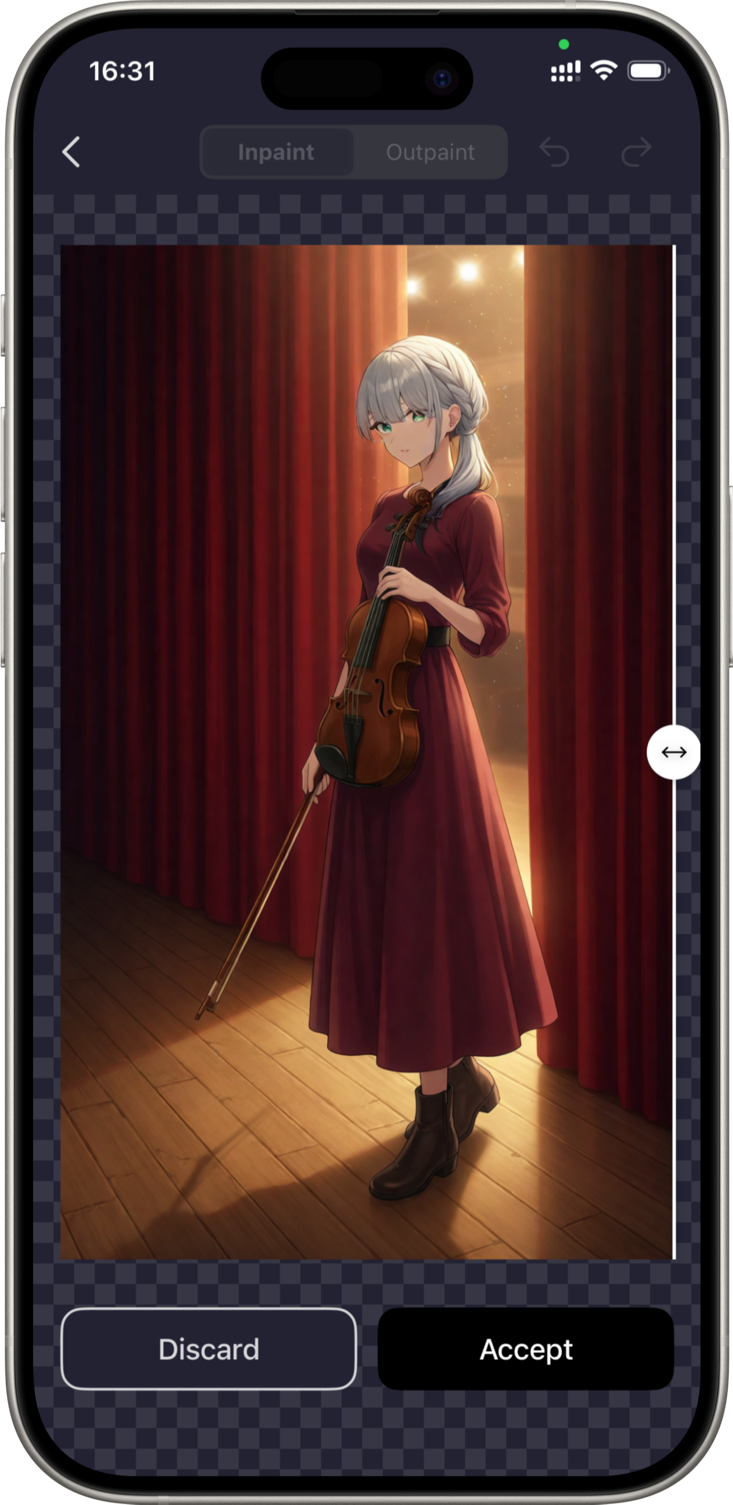
After generating, compare the edited area with the original. If the new version introduces something you don’t like, adjust the mask or prompt and try again rather than changing several parts of the image at once.
3. Use outpainting to expand the image
Sometimes the image itself works, but the frame feels too tight. Maybe you want to show more of the character, reveal more of the environment, or turn a portrait into a wider scene. Outpainting lets you extend the image beyond its original boundaries.
The option is just next to Inpaint after clicking on an image. Here, you can drag a frame to fit your preferred image size, then write a prompt telling PixAI what you want to do.
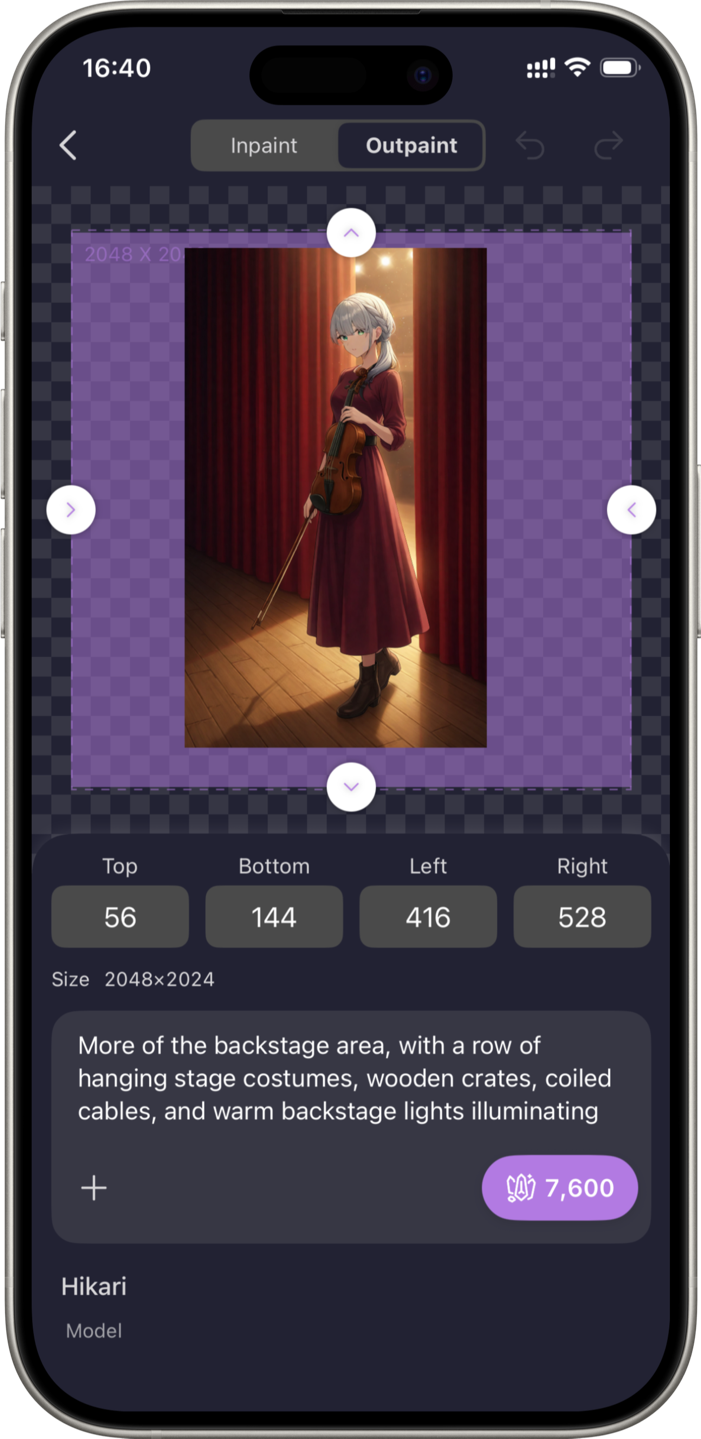
4. Use references when you need more control
References are useful when you want to guide a change with another image rather than describing everything in words. On PixAI mobile, you can use one, two, or up to three reference images to influence the result.
This can be particularly helpful for character edits. For example, you might have an anime character you like and want to give her a different clothing style. A reference image showing the clothing can provide the visual direction, while the original image helps retain the character and scene you want to keep.
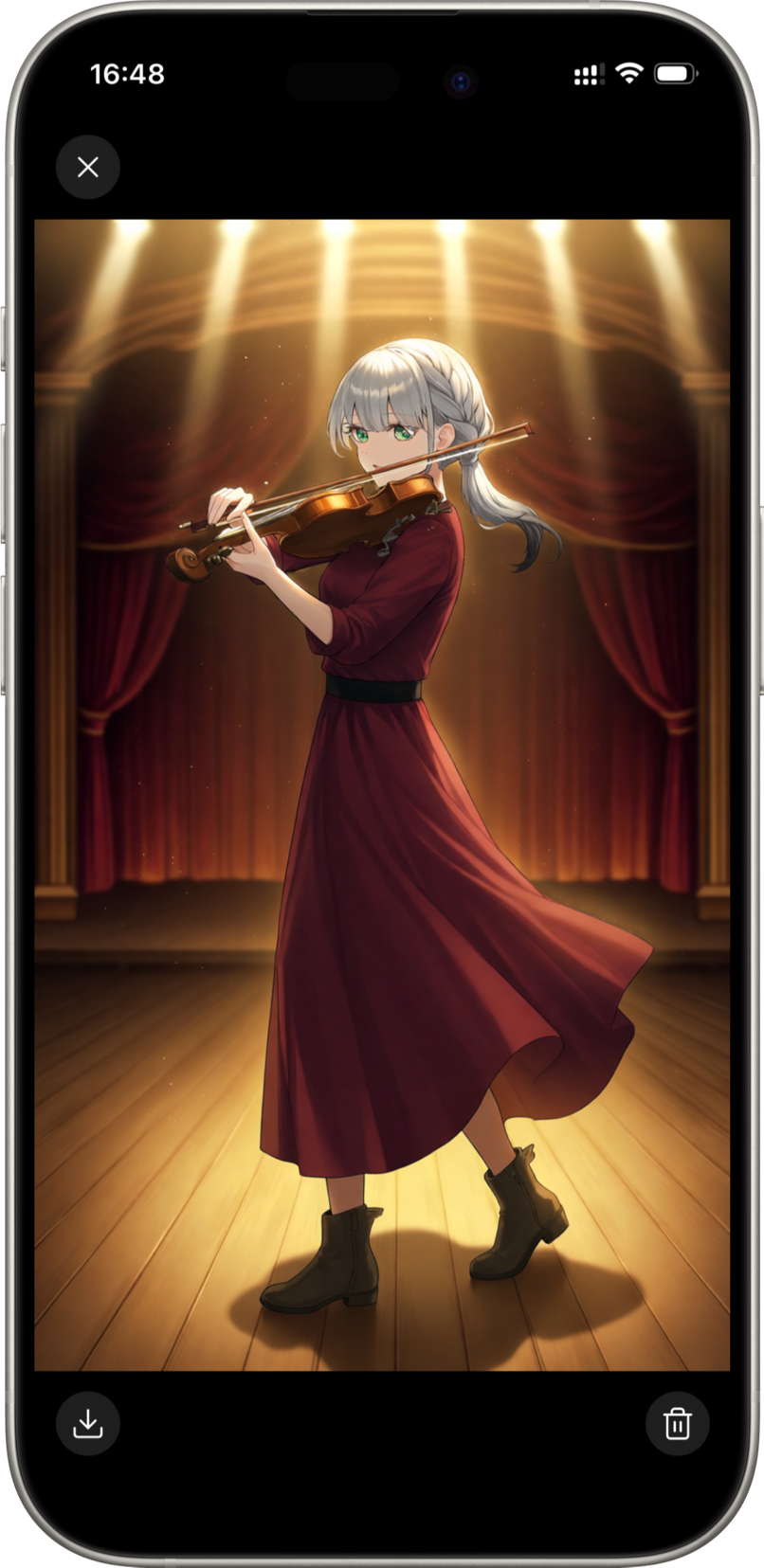
The same approach can work for building scenes. For example, we can move our character to the stage and get her performing.
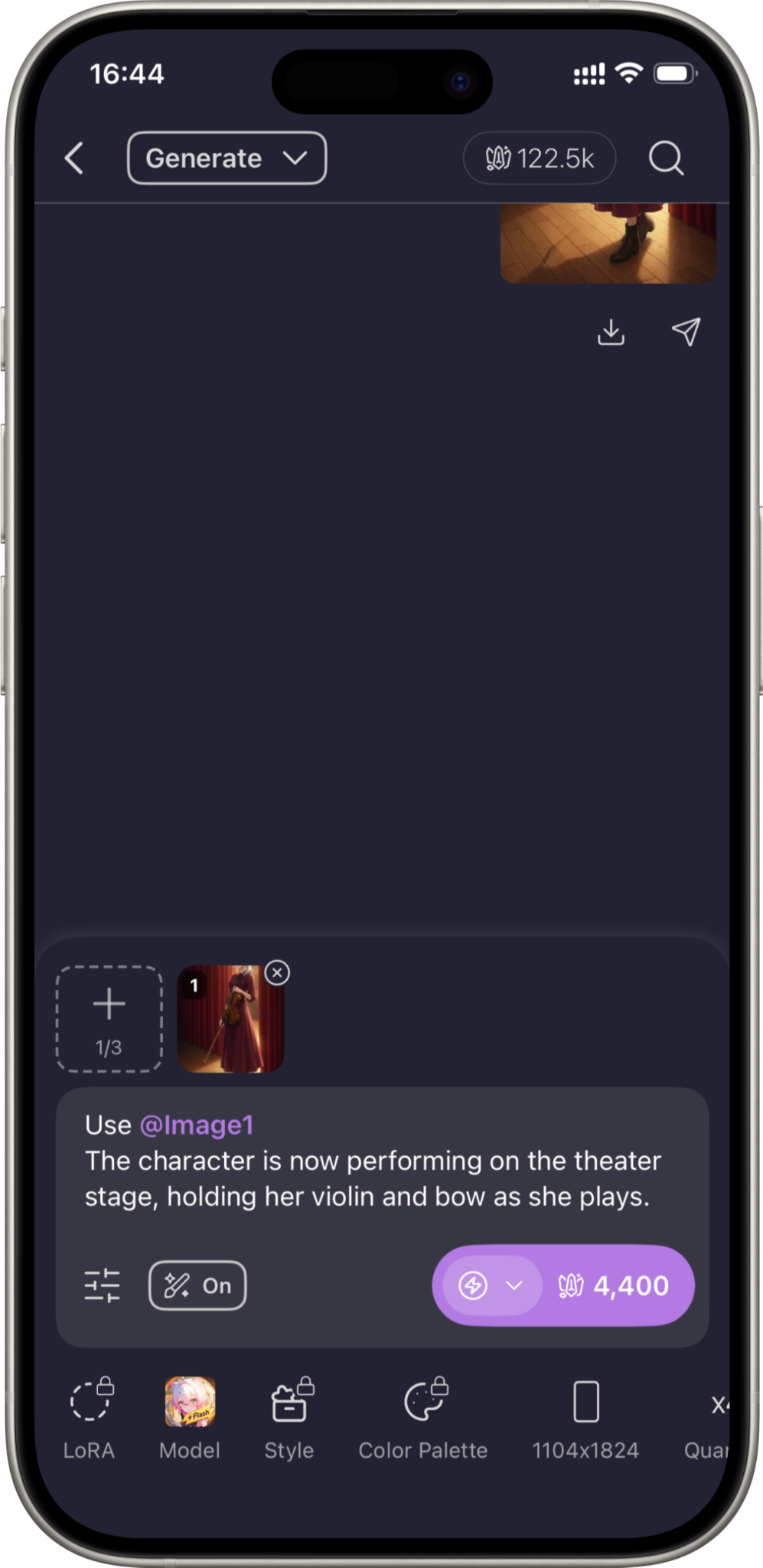
Using a reference image helps keep the character consistent and the background relatable.
How to refine an edit instead of starting over
Once you’ve made one change, resist the urge to fix everything in the same generation. A character might have the right outfit but an awkward hand, or the new pose might work while the background needs another adjustment. Treat each generation as another step in the process.
Change one thing at a time
Make the next edit specific. If you’re changing the outfit, leave the pose alone. If you’re fixing the background, avoid changing the character at the same time. Smaller changes make the results easier to judge.
Keep the versions you like
Save a useful generation before trying another edit. A new version may solve one problem while introducing another, and having the earlier image means you can always go back.
Compare each result with the original
Don’t judge an edit only on its own. Put it alongside the version you started with and check whether the change actually improved the image. Look at the character, composition, details, and anything else you were trying to fix.
After a few rounds, you’ll usually have a clearer idea of which version is worth developing further.
A practical mobile editing workflow
Once you understand what each editing method does, you can combine them as part of the same project. You might start with a general prompt change, use Inpaint to fix a specific detail, then use a reference when you want more control over the character.
A useful workflow can look like this:
Original generation → prompt edit → targeted Inpaint → reference-guided edit → Outpaint → final refinement
You don’t need to use every step for every image. Start with the smallest change that can solve the problem you’re looking at, then move to another method if the result needs more work.
For example, if the character’s outfit is wrong, try a prompt change first. If everything else is already working and you only want to replace an accessory, Inpaint gives you a more focused approach. If you want to introduce a specific new outfit or pose from another image, a reference can provide stronger visual guidance. And if the finished composition feels too cramped, Outpaint can give the scene more room.
Which PixAI editing method should you use?
The best option depends on how much of the image you want to change and how specifically you want to control the result.
|
You want to… |
Use… |
|
Try a different version of the overall image |
Edit the prompt |
|
Replace a specific part of the image |
Inpaint |
|
Add more space around the existing image |
Outpaint |
|
Guide a new pose, outfit, or other visual change |
References |
|
Make several different improvements |
Combine the methods |
Think about the problem first, then choose the least disruptive editing method that can solve it.
Where mobile editing works best
Editing AI anime art on your phone makes the most sense when you want to keep the process moving without sitting down for a long editing session.
Quick corrections
Inpainting is handy for fixing a small detail while the rest of the image is already working. You can mask the problem area, describe the replacement, and generate another version without rebuilding the entire scene.
Working from references on your phone
If the reference you need is already in your gallery, you can bring it directly into the workflow. This is useful when you’re experimenting with a different outfit, pose, or visual direction and already have an image showing what you’re aiming for.
Short creative sessions
You don’t need to complete an entire project in one sitting. You can make one change, check the result, save a promising version, and come back to it later when you have another idea.
Developing an image wherever you are
A generated image can become something you continue working on rather than something you simply save and move on from. Mobile editing gives you the flexibility to make those next changes when you have the time and inspiration.
When you may want to move to desktop
Phone editing covers a lot of situations, but a larger screen can become useful as the project gets more involved. If you’re comparing many versions, working with several references, or making detailed changes across a longer session, desktop gives you more room to see everything at once.
You may also prefer desktop when you’re writing and rewriting long prompts. A physical keyboard makes it easier to review the wording and make several changes without constantly moving between fields.
For a quick correction or a focused edit, mobile can be all you need. For a larger project with many generations and assets to keep track of, desktop may give you a more comfortable workspace.
Where PixAI fits
PixAI brings the whole editing process into the same workflow where you create your anime images in the first place. After generating an image, you can open it again and choose the editing approach that matches the change you want to make.
For a quick variation, you can adjust the prompt. When one part of the image needs replacing, Inpaint gives you a more focused edit. Outpaint lets you build beyond the original frame, while references give you another way to guide changes such as a character’s pose or clothing.
And when a project calls for more screen space and control, you can find your creations on the desktop version and continue working there. That makes it possible to start an edit on your phone and move to a larger workspace when you need it, without losing the work you’ve already created.
Final thoughts
The first generation doesn’t have to be the finished image. On PixAI, you can keep working from that starting point, whether you want to change one small detail, extend the composition, try a different outfit, or guide a new pose with references.
The mobile workflow gives you several ways to make those changes without starting from a blank canvas. And when an edit grows into a larger project, you can open your creations on desktop and continue with more screen space and control.